
Broadcasts
Overview
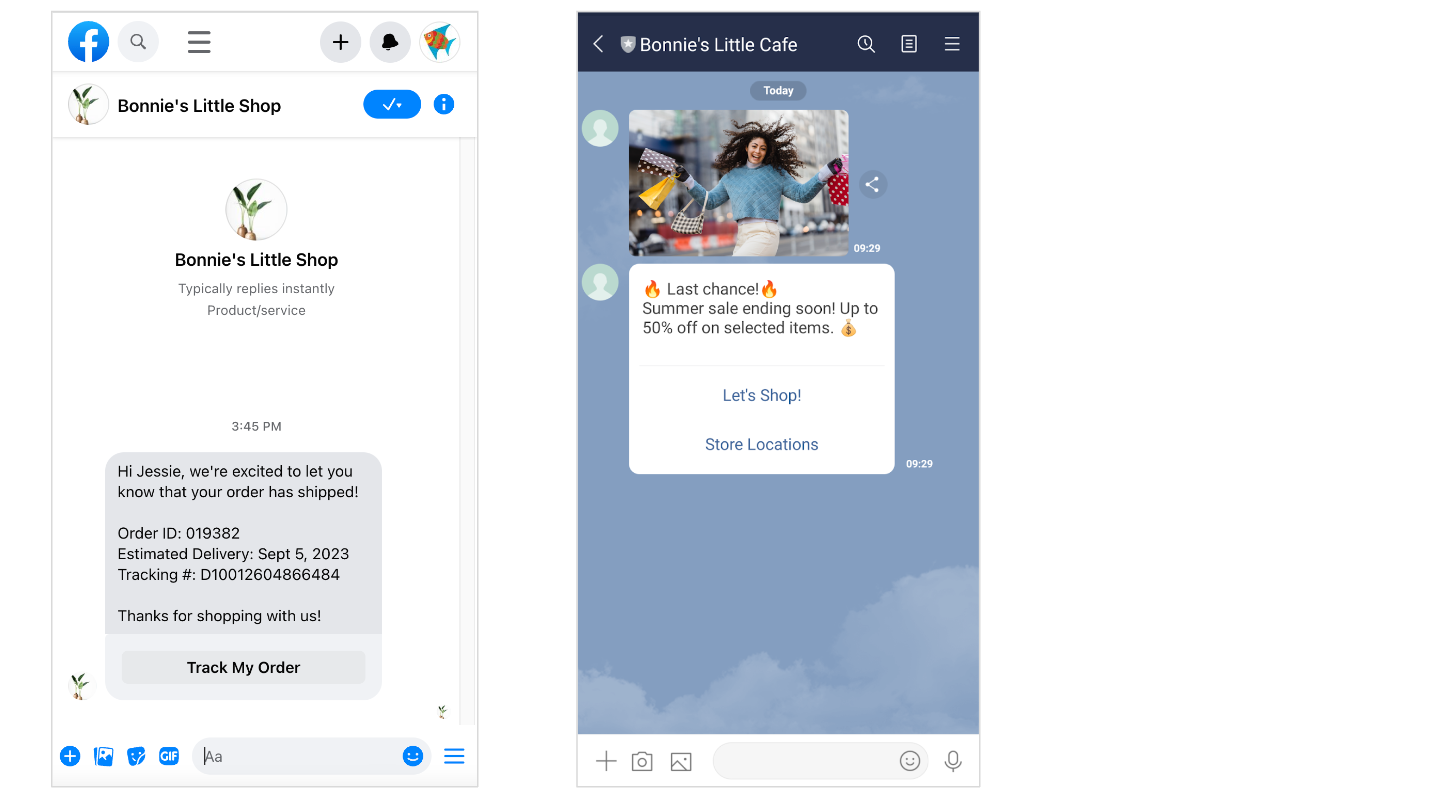
You can send broadcast messages to your users through Facebook Messenger, LINE Official Account, and KakaoTalk. Using BotBonnie, you can target the right audience based on different conditions, such as tags, last interaction time, and account linking status.
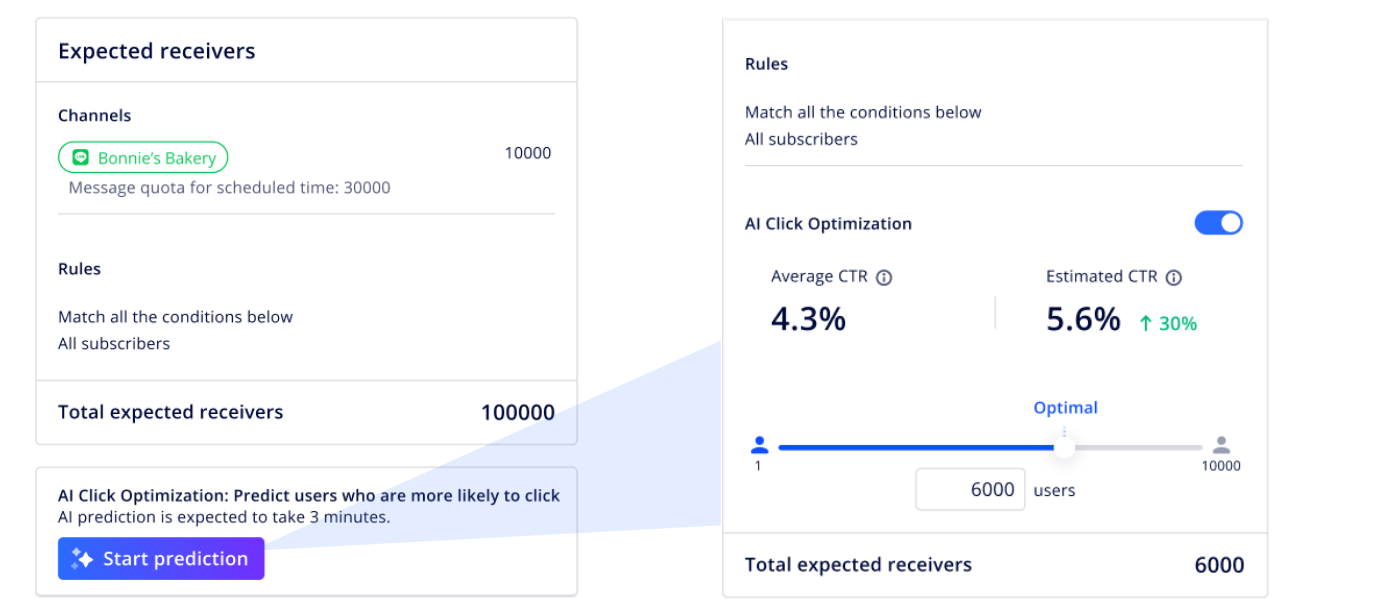
BotBonnie also offers an AI Click Optimization feature that predicts users who are more likely to click on your broadcasts, allowing you to target the right users and increase click-through rate (CTR). By excluding users who are not likely to click, you can potentially save broadcast costs and avoid disturbing users who are not interested.
AI Click Optimization
- AI Click Optimization is a premium feature. Contact your customer success manager for more details.
- You will need to have past broadcast data in order to use this feature. The AI model analyzes user behaviors based on the performance of recent broadcasts that include a clickable URL.
- For more details on the requirements and the setup steps, see Set up AI Click Optimization.
Below are the different ways to filter broadcast audience and the AI features supported by each channel.
| Features | LINE OA | Facebook Messenger | KakaoTalk |
|---|---|---|---|
| Ways to filter audience | Filter by conditions Filter by segment | Filter by conditions | Filter by conditions |
| AI Click Optimization | Supported | N/A | N/A |
Creating broadcasts
1. Create a new broadcast
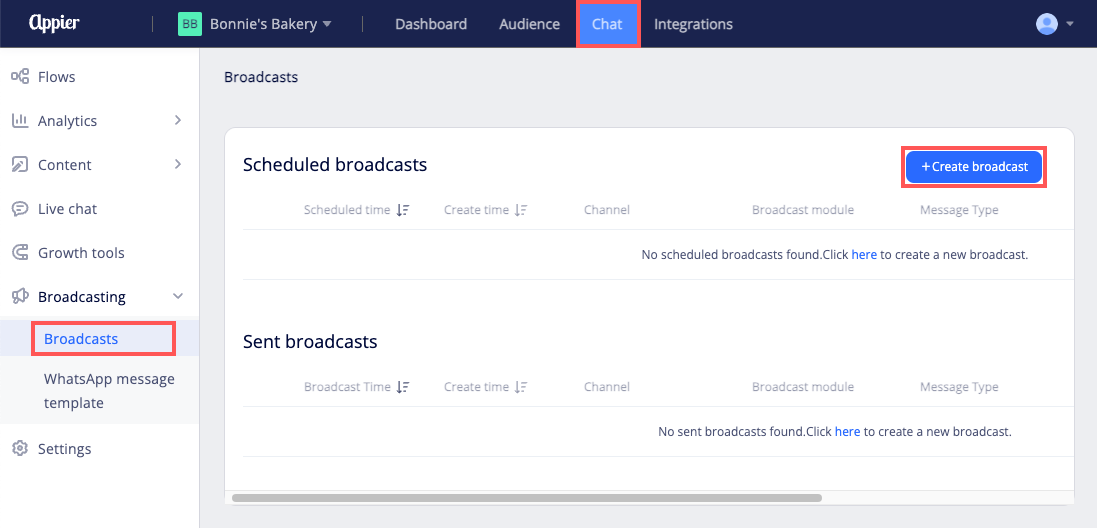
Go to Chat > Broadcasts in the menu, and click Create broadcast.
2. Select the broadcast channel
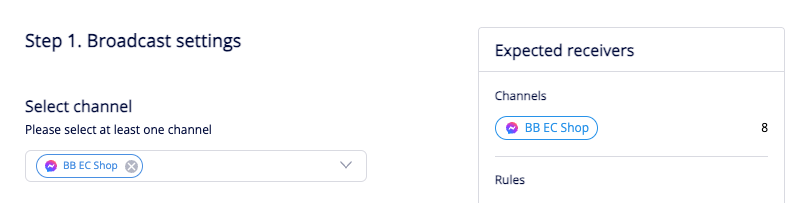
Select the channels you want to broadcast to.
You can select multiple Facebook Pages, LINE Official Accounts, or KakaoTalk channels, but the channels selected need to be of the same messaging platform.
Page permission
Under the Expected receivers section on the right, if you see a reload symbol 🔄 and the expected receiver count is not displayed, make sure you have admin access to the Facebook Page.
3. Filter the broadcast audience
Below are the filtering methods and the corresponding message types supported by each platform.
| Filter method | LINE | KakaoTalk | |
|---|---|---|---|
| Filter by condition: no condition set | Targeted broadcast | All message tags | All messages |
| Filter by condition: conditions set | Targeted broadcast Mass broadcast | All message tags | All messages |
| Filter by segment | Narrowcast | N/A | N/A |
There are two ways to filter your broadcast audience.
- Filter by condition: You can set up one or multiple filter conditions, or no conditions at all.
- If you do not select a filter condition, the broadcast message will be sent to all users who have interacted with the channel.
- If you want to set multiple filter conditions, click Add condition. You can select Match all to target users who meet all conditions or select Match any to target users who meet any of the conditions.
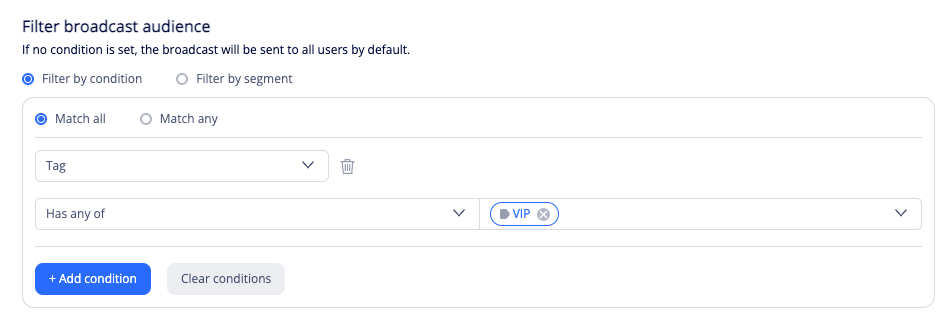
- Filter by segment: You can select an existing segment. To create a segment, go to Audience > Segments.

Filter by conditions
Below are the different filter conditions.
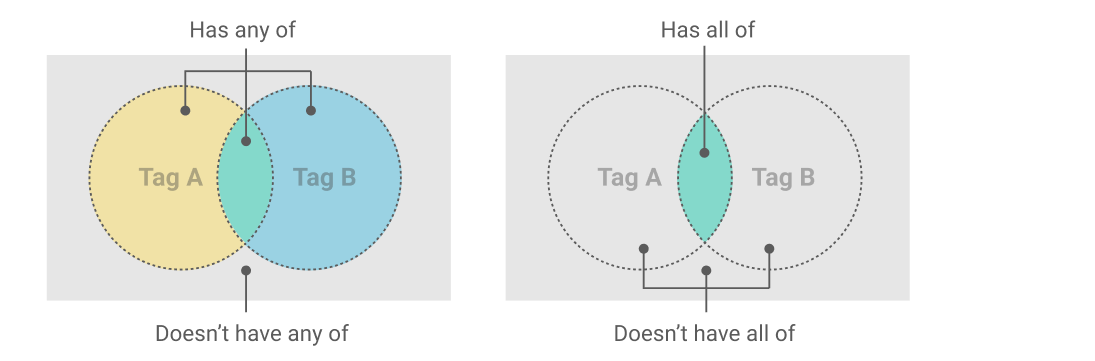
- Tags: You can target users based on the tags. Below is an example of how the different operators work if you select two tags, A and B.
- Tag confidence level: You can target users based on the confidence index of a tag by entering an index between 1 to 10.
The confidence level of a tag is calculated based on the last tagged date and the tag count. A higher confidence index is given to users with a higher tag count and a more recent tagged date. - Tag count: You can target users based on the number of times the user has been tagged with this tag. For example, you can offer a discount to users who frequently purchase a product.
- Tagged date: You can target users based on the date that the user was tagged with this tag. For example, you can target users who recently contacted customer service after a certain date.
Another user case is if you use the same tag for multiple campaigns with different and non-overlapping campaign periods, you can also use this condition to distinguish users who participated in different campaigns. - First interaction: You can target users based on the date of their first interaction with your bot. For example, you can target new users by filtering users whose first interaction time is after a certain date.
- Last interaction: You can target users based on the time of their last interaction with your bot.
- Account linking status: You can target users based on their account linking status by selecting Linked or Not linked.
- Menu group: You can target users based on the LINE or Messenger menu group that they belong to.
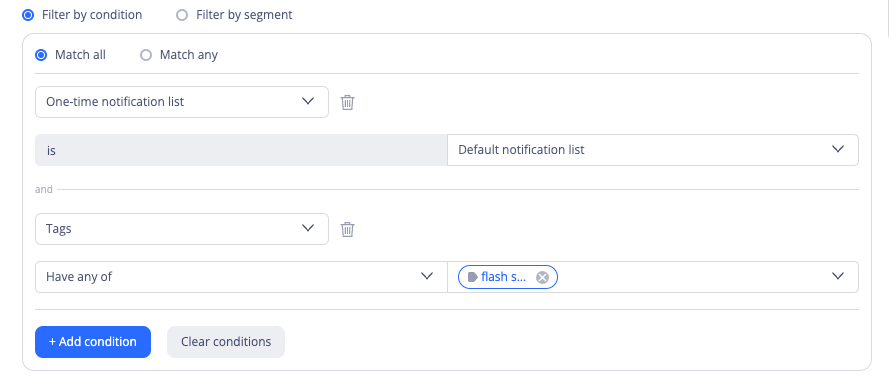
- One-time notifications / recurring notifications: You can target users who have clicked on the Notify me button in a one-time notification request or a recurring notification request.
If you have set the triggered action of the Notify me button to Add tag, you can add a second condition to filter based on that tag.
- Not been sent broadcast recently: You can target users who have not been sent a broadcast in the past 1 to 60 days to avoid sending broadcasts to users too frequently.
- Birthday: You can target users who have a birthday during a certain month. For example, you can broadcast birthday special offers to users who have a birthday in October.
4. Set broadcast time
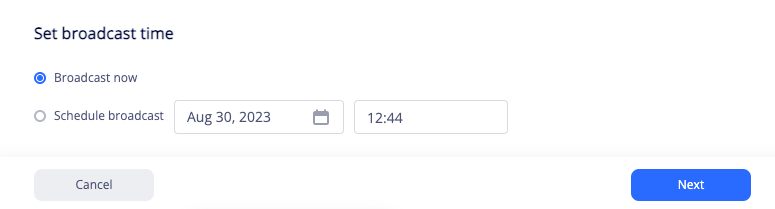
Set a broadcast time and click Next.
- Broadcast now: The broadcast will be sent after you complete all the broadcast settings. Note that it may take up to a few minutes for users to receive the broadcast depending on the size of your receivers.
- Schedule broadcast: You can set a broadcast time that is at least 30 minutes and up to 6 months from now.
Note
Avoid modifying the broadcast content within 30 minutes of the scheduled time.
5. Select a message tag
For LINE and Facebook, select a message tag.
LINE
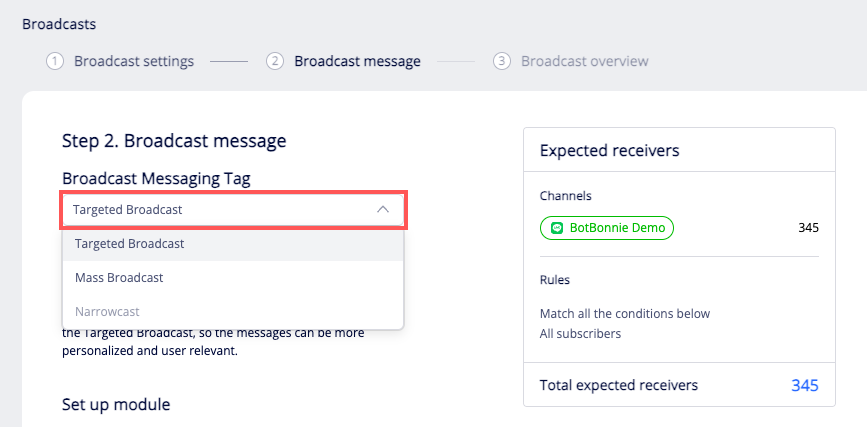
If you are broadcasting through LINE Official Account, select one of the following messaging types based on how you filter the target audience.
- Targeted broadcast: This option is only supported if you have selected Filter by Condition. The broadcast will be sent to users who meet the filter conditions selected and have interacted with the chatbot before.
- Mass broadcast: This option is only supported if you did not set any filter conditions. The broadcast will be sent to all users who are friends with your LINE Official Account, including users who have not interacted with you before. Those who blocked your LINE Official Account are excluded.
- Narrowcast: This option is only supported if you have selected Filter by segment. The broadcast will be sent to users in the segment who have interacted with the chatbot before.
Facebook
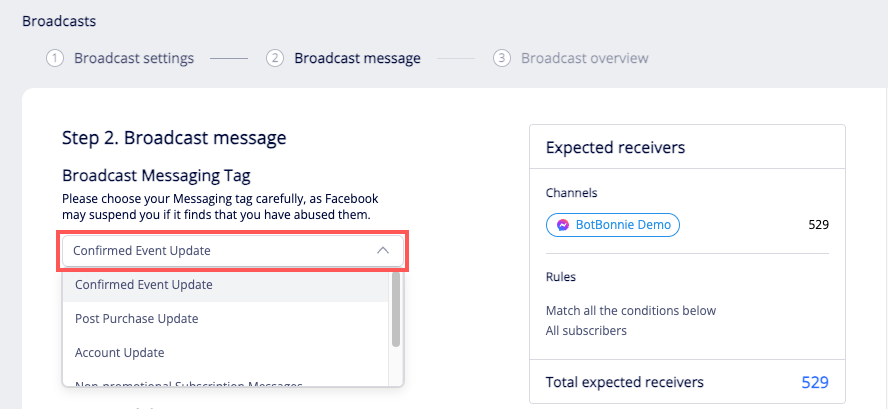
If you are broadcasting through Facebook Messenger, select one of the following messaging tags based on the content and purpose of your broadcast.
- Confirmed event update: Send users confirmations, reminders or updates for an event they have registered for (e.g. purchased tickets). This tag can be used for upcoming events and events in progress. Promotional content is not allowed.
- Post-purchase update: Send users updates on recent purchases, such as transaction details and shipment status notifications. Promotional content is not allowed.
- Account update: Send users notifications about their application or account, such as credit card application or suspicious activity notifications. Promotional content is not allowed.
- Non-promotional subscription update: Subscription messaging is only available for news organizations that successfully register their Pages with Facebook's News Page Index (NPI). Promotional content is not allowed.
- Standard messages: The content can be promotional. The broadcast will only be sent to users who have interacted with your Messenger within the last 24 hours. See Facebook's policy on what counts as an interaction.
Important
Carefully choose your message type based on the content of your broadcast. Facebook may suspend you if it finds that you have abused them.
- Promotional content can only be sent through Standard messages.
- See Facebook's guide on the allowed usages of different message tags.
6. Set up the broadcast module
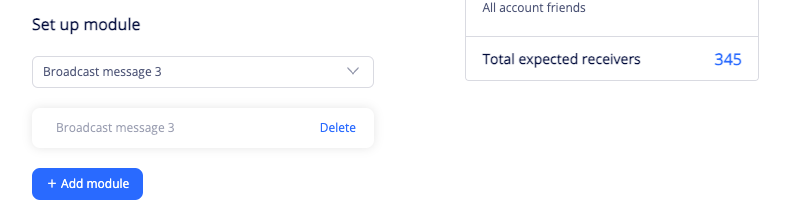
Select an existing broadcast module or click Add module to create one.
7. Set up AI Click Optimization (Optional)
Requirements
- AI Click Optimization is a premium feature. Contact your customer success manager for more details.
- To use AI Click Optimization, the following requirements must be met:
- AI Click Optimization can only be used on a single LINE Official Account.
- The message type must be Targeted broadcast or Narrowcast.
- The broadcast module must include an URL.
- The broadcast needs to be scheduled at least 1 hour from now.
- The expected receivers need to exceed 1000 users.
To use this feature, click Start prediction. It'll take a few minutes for the prediction to complete.
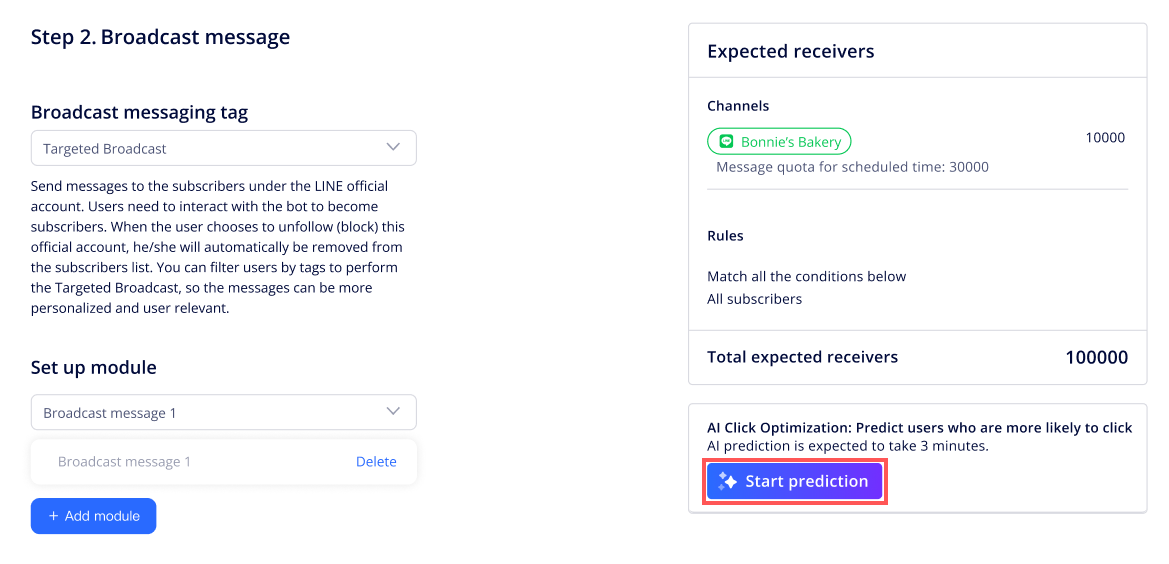
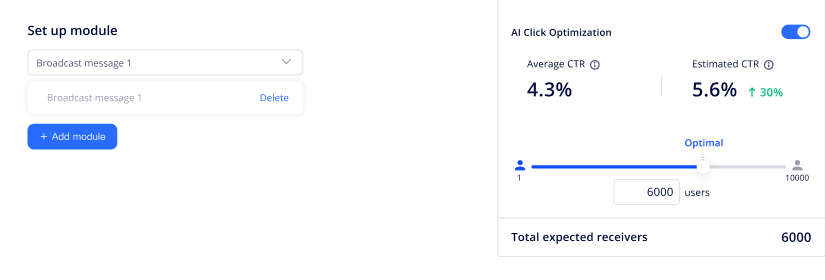
After the prediction is completed, you will see a slide bar that indicates the number of estimated receivers and the estimated CTR. The Optimal point is the sweet spot calculated by AI that boosts CTR but still includes enough users, striking a balance between precision and coverage.
You can drag the slide bar or enter a user size to adjust the number of receivers to include. If you move the slide bar to the right, more users will be included, but the estimated CTR will also drop because the target audience now includes more users who are less likely to click. The opposite is true if you move the slide bar to the left.
Note
The Estimated CTR is based on the prediction generated by the AI model. The actual CTR may differ from the prediction. The message content you used will also affect the actual CTR.
8. Review and complete the settings
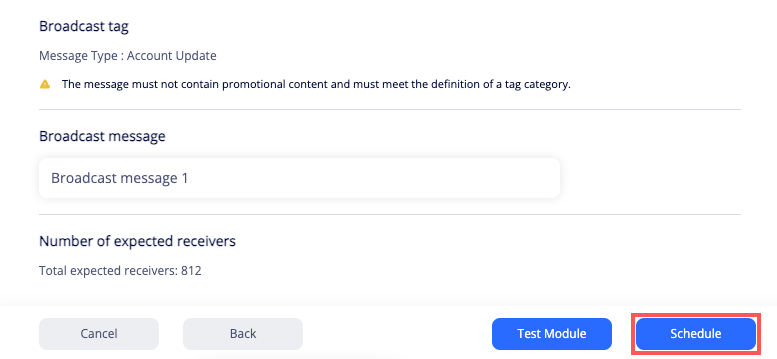
Click Next. Review the broadcast settings and click Schedule or Send.
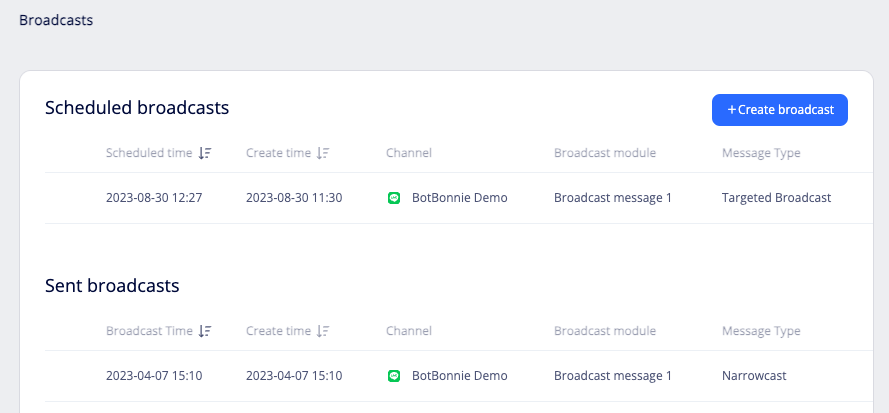
You'll find the broadcast under either Scheduled broadcasts or Sent broadcasts.
Broadcast reports
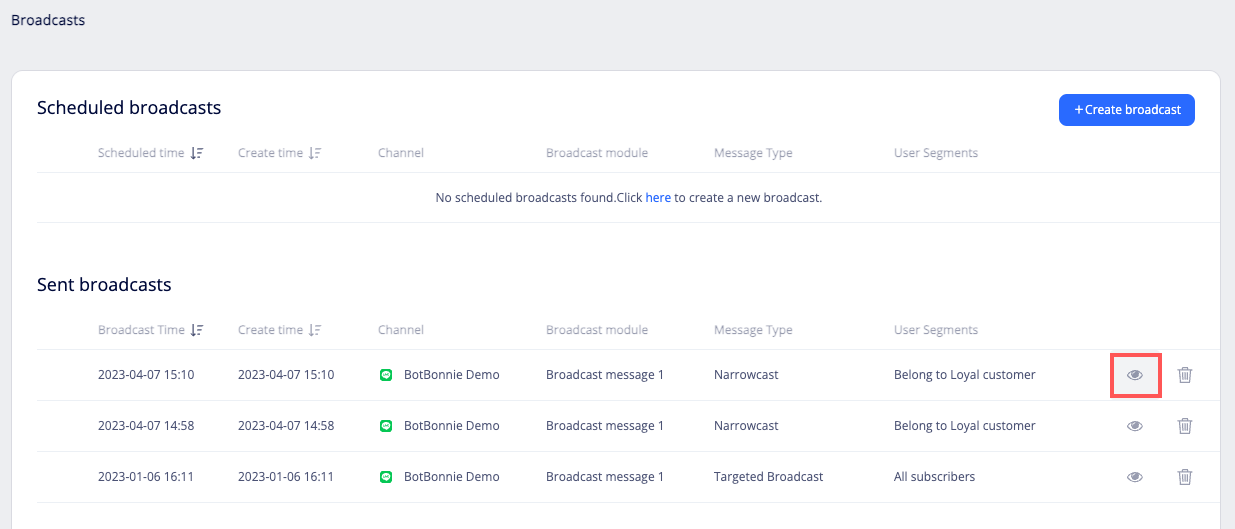
To view the performance report of the broadcast, click the View icon of the broadcast. After the broadcast is sent, it may take several minutes for the View icon to become available.
Export report
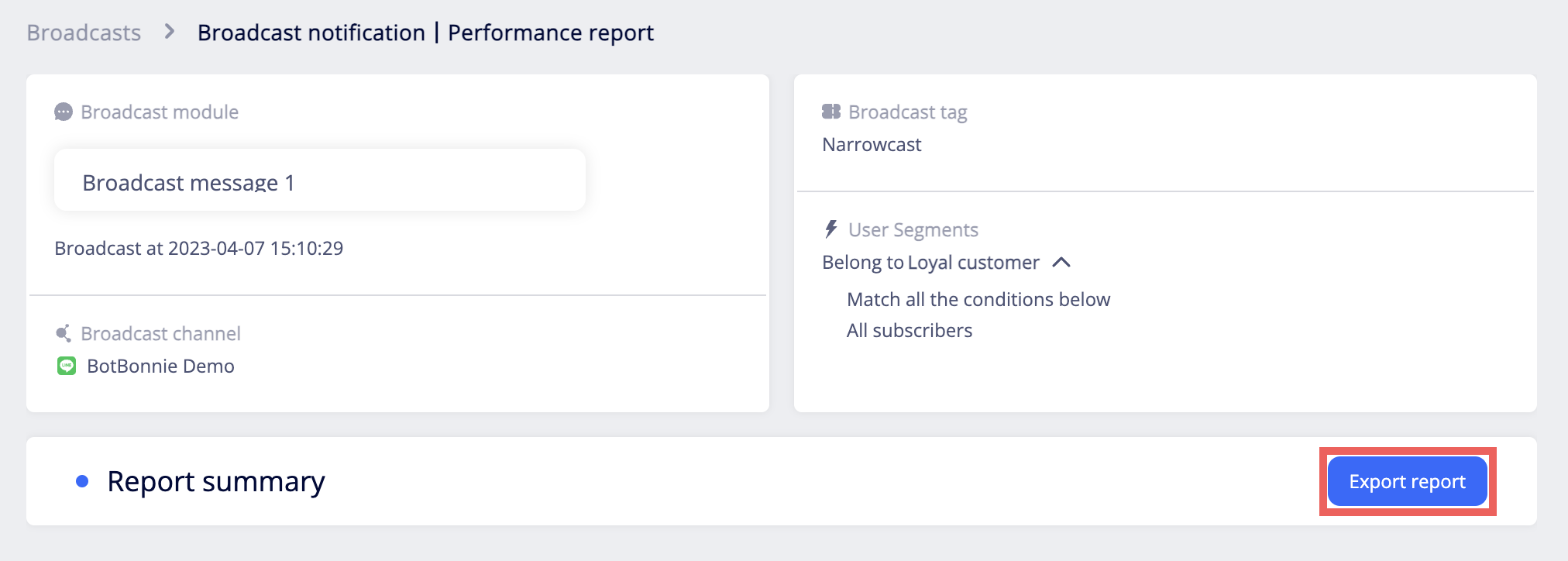
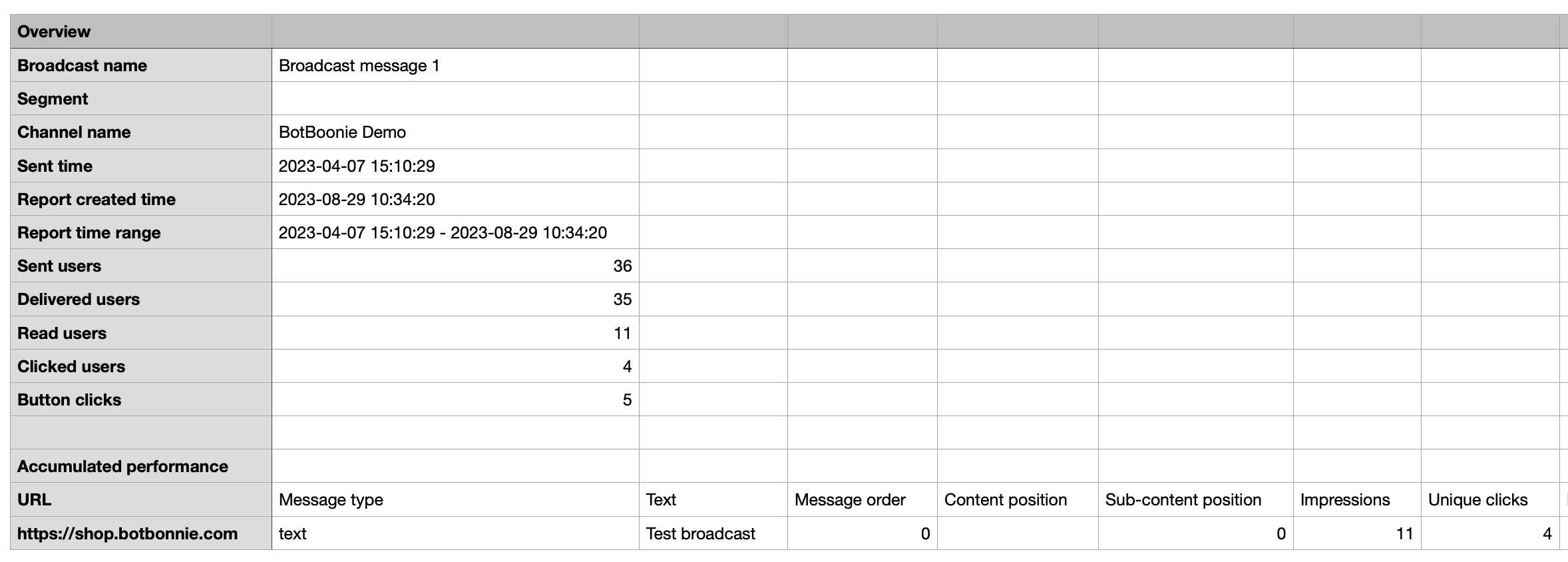
If you are using LINE mass broadcast or narrowcast, you can export a detailed report.
To export the report, click Export report in the top-right corner.
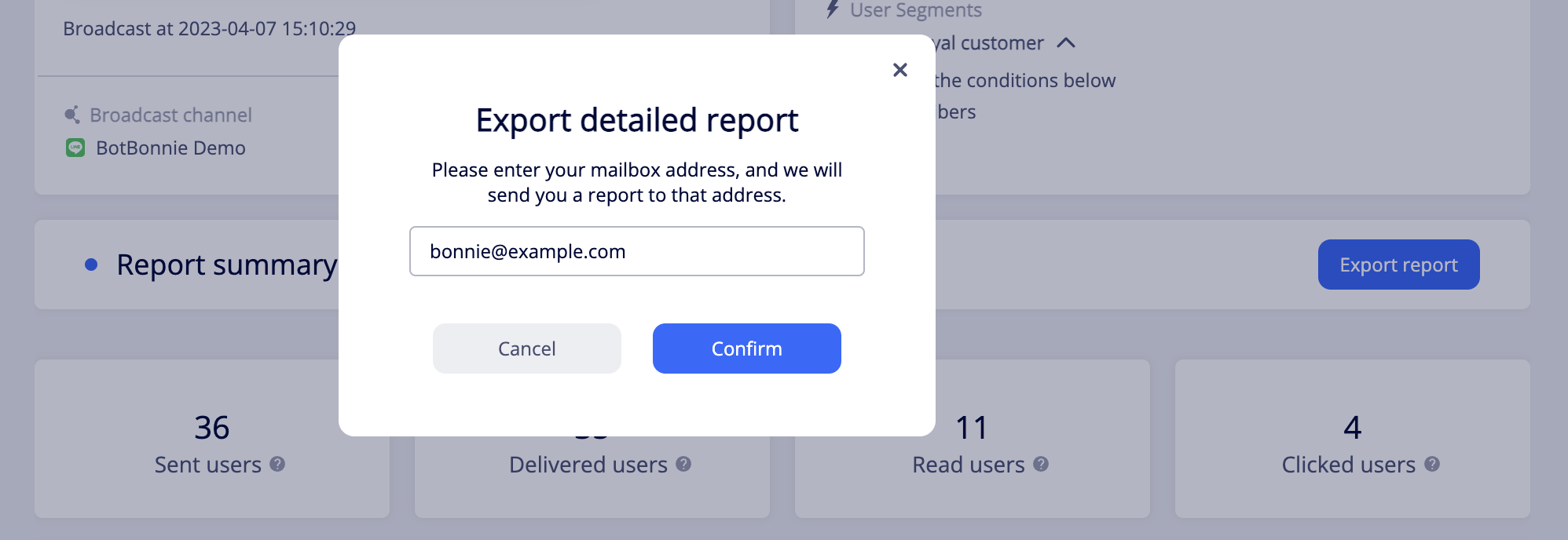
Type the email address where you'd like the CSV file to be sent to. Click Confirm.
Report summary
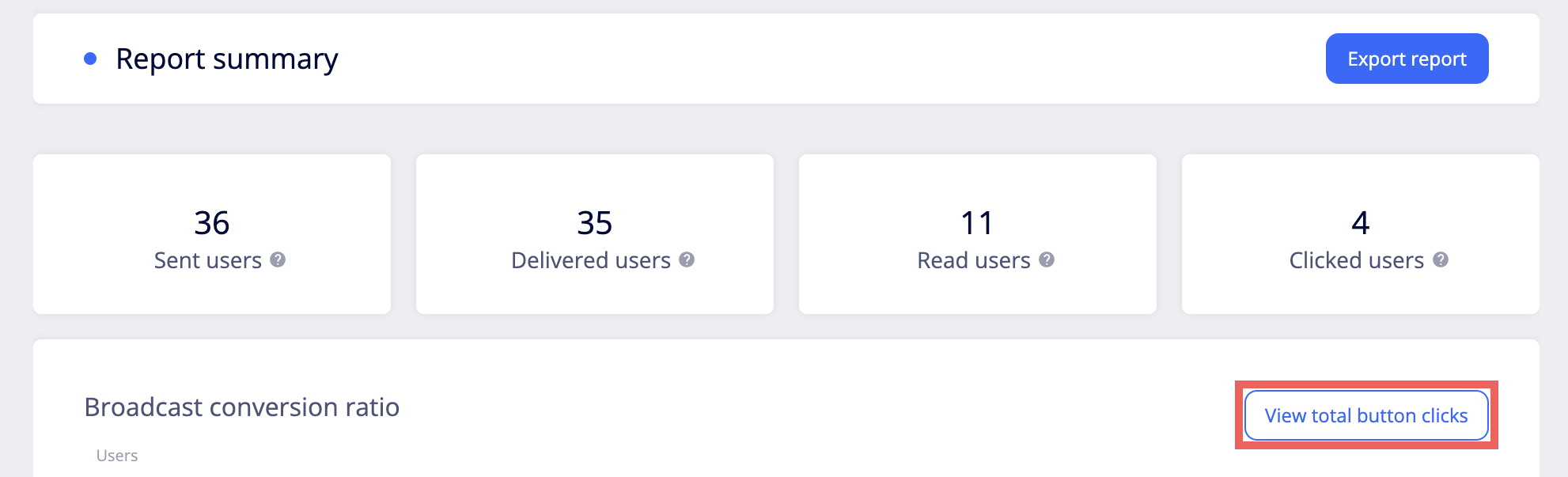
- Sent users: The estimated number of users who were sent broadcast messages. Broadcast messages may not be sent successfully due to reasons such as being blocked by users or reaching LINE message limit.
- Delivered users: The number of users who received the messages.
- Read users: The number of users who opened the messages. This number is not available for LINE targeted broadcasts.
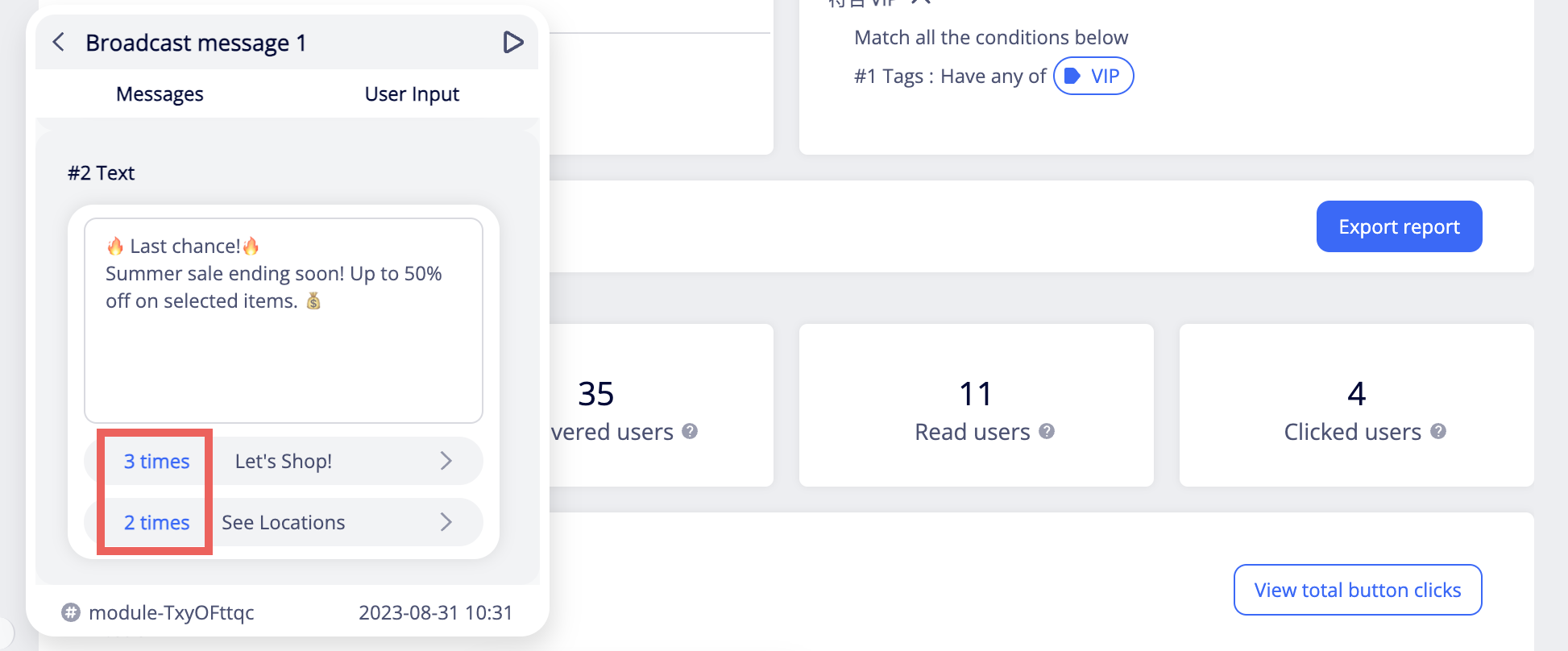
- Clicked users: The number of users who clicked any of the buttons or quick replies in the broadcast.
Note
For LINE mass broadcast and narrowcast messages, the numbers are provided by LINE. To protect users' privacy, LINE does not provide some metrics (e.g. read users and clicks users) when the number of users is too low.
For LINE targeted broadcasts, you can click View total button clicks to see the number of times each button has been clicked by users.
Updated over 2 years ago