
View Company Information
This document provides instructions on how to update your company information within the platform. As an Organization admin, you have the ability to modify various details to ensure accurate representation of your company.
Accessing Company Information Settings
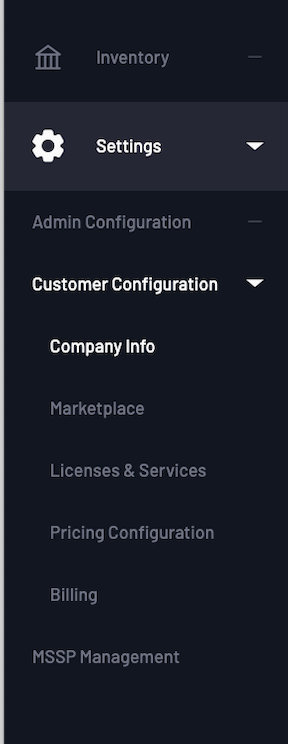
To access and update your company information, follow these steps:
- Open the Navigation bar and click on Settings.
- Navigate to Customer Configuration and select Company Info.
Updating Company Information
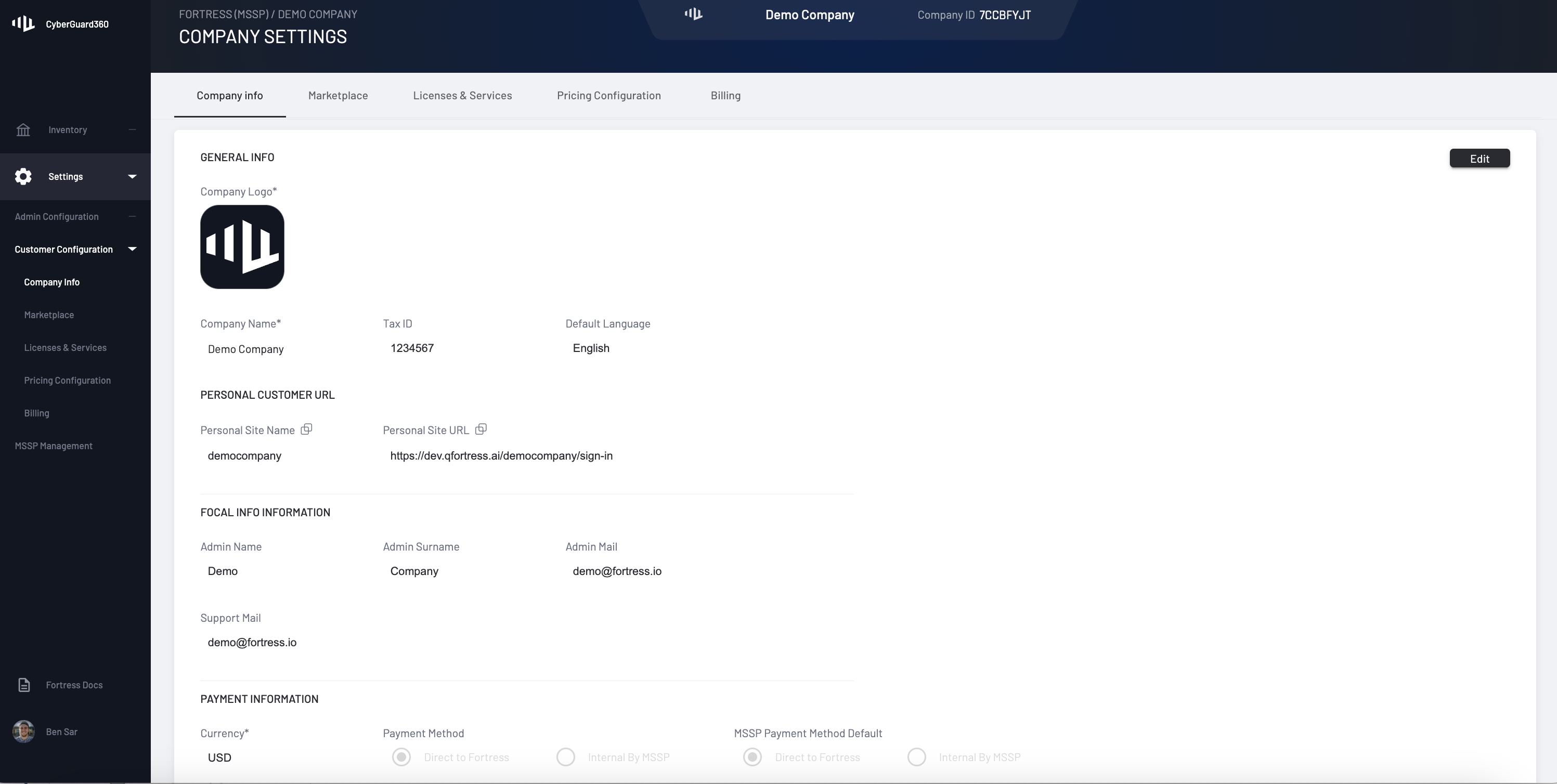
Once you've accessed the Company Info settings, you'll be able to update the following fields:
| Field | Description |
|---|---|
| Company Logo | Upload or change your company's logo. |
| Admin Name | Update the name of the administrator. |
| Admin Surname | Update the surname of the administrator. |
| Admin Email | Update the email address of the administrator. |
| Support Email | Update the email address for support inquiries. |
| Provider Name | Update the name of the service provider. |
| Provider Surname | Update the surname of the service provider. |
| Provider Email | Update the email address of the service provider. |
| Phone Number | Update the contact phone number. |
| Company Web Address | Update the company's website URL. |
| Number of Users | Update the total number of users in the company. |
Ensure to review and save your changes after updating the necessary fields.
Example
Here's an example of how the Company Info settings page looks:
By keeping your company information up to date, you ensure accurate representation and effective communication within the platform.
Updated over 2 years ago
Did this page help you?